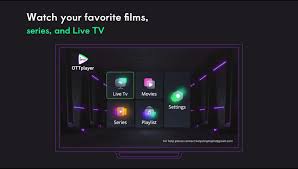
IPTV SMARTER

You will receive the identifiers of your IPTV subscription by email in this form, which will make it easier for you to configure them on the application:
Program : Pegasus IPTV
User: XXXXX
Password: YYYYYY
URL : http://example.com:8789
Click on Add User
Smart IPTV subscription setup screen on the app:
NET IPTV

Configure the NET IPTV application :
Just go to your device’s store , search for the app, download it and install it.
After installation, a message on the home screen is displayed asking you to go to the official website of the application, to activate the application.
The MAC address, which is the identifier of your device, it will be used to activate the application.
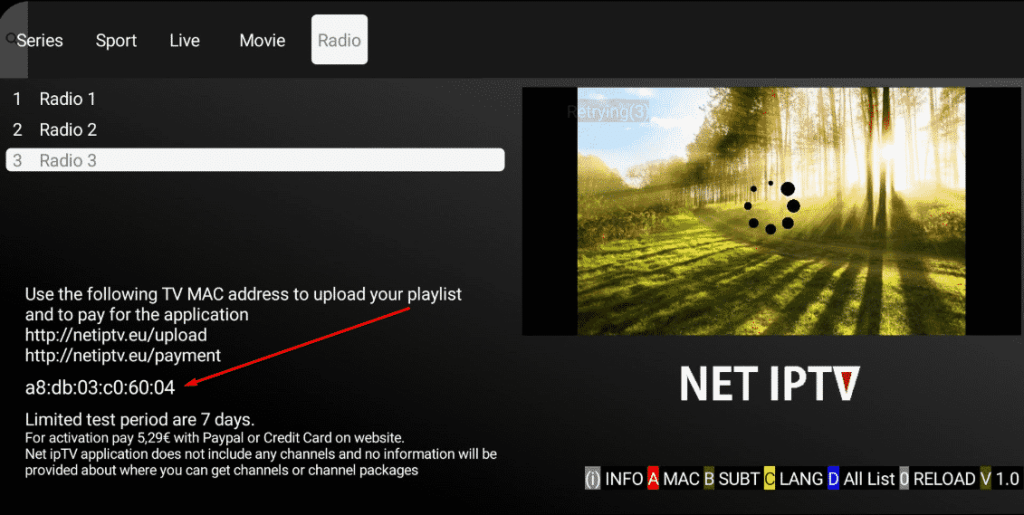
Then go to the application site at the following address: https://www.netiptv.eu/
NB: The application is chargeable (about 5 or 6€). You can test it for a week and then you will have to pay to use it.
the application website: https://www.netiptv.eu/Payment
Then go to the “Upload” tab

-
Enter your device’s MAC address that you wrote down earlier.
-
Check I am not a robot and answer the security question
-
Paste the address of the playlist you received from your IPTV provider
-
Click add list.
-
Now go back to your Android TV or device
-
Wait a few moments for your provider’s playlist to load
FLEX IPTV

How to configure Flix IPTV?
We now show you how to set up your subscription on the Flix IPTV app using your m3u link.
1. Once the application is installed, launch it so that its mac address is displayed on the screen.
If you haven’t written down the mac address, you can find it by going to the left menu, navigating to Settings, and in the next menu, scrolling down to User Account.
2. Go to the link: https://flixiptv.eu/mylist
3. Fill in the requested information, the mac address and your m3u link then click on Send.
4. The last step is to restart the app or refresh the list in Settings > Edit Playlist. A window will appear asking you to reload the list, click OK.
How to activate Flix IPTV?
NB: Flix IPTV is like other applications for Smart TV ( SET IPTV , NET IPTV, Smart STB, …) it offers 7 days of free trial, after that you will have to pay 7.99 EUR to activate it for life on a single device or TV .
Here is the link to the activation page: https://flixiptv.eu/activation

IPTV SMARTER

You will receive the identifiers of your IPTV subscription by email in this form, which will make it easier for you to configure them on the application:
Program : Pegasus IPTV
User: XXXXX
Password: YYYYYY
URL : http://exemple.com:8789
Click on Add User
Smart IPTV subscription setup screen on the app:
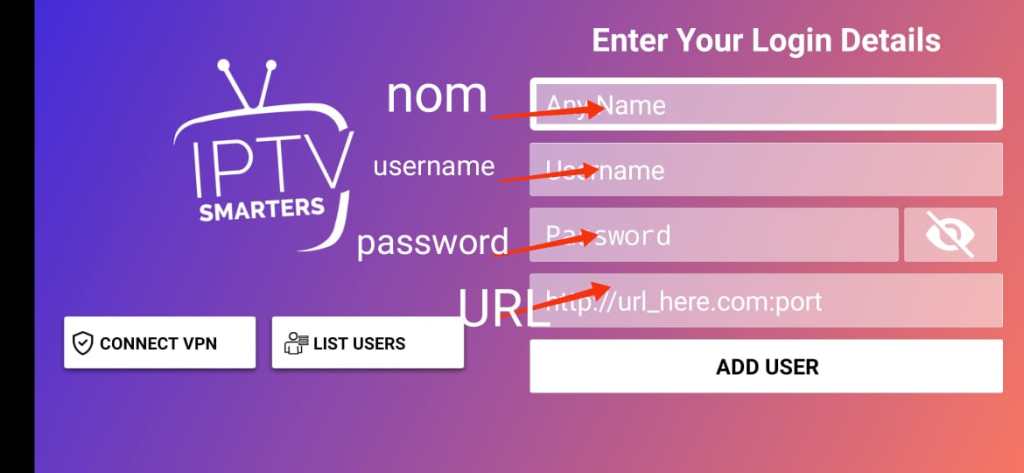
XSTREAM PLAYER

To set up Xtream IPTV, you can:
Purchase a subscription from an IPTV provider. Some providers offer a free trial.
Download and install the IPTV Smarters app from the App Store or Google Play Store.
Open the app and click Login with Xtream Codes API.
Enter your username, password, and URL.
Click Add Playlist + to add your channels.
Enter your EPG URL and channel list URL.
Start watching.
User Name/Password Example:
Program : Pegasus IPTV
Username : XXXXX
Password : YYYYYY
URL : http://example.com:8789


IPTV PRO

To set up an IPTV app on a Roku TV, you can follow these steps:
- Download and install the IPTV app on your device
- Open the app and accept the terms of service
- Sign in with the username and password provided by your IPTV provider
- Start streaming
You can also install IPTV Smarters on Roku by following these steps:
- On your computer, go to the URL link from Roku
- Sign in with the username “rokudev” and the password you created for the webserver
- Click Upload
- Browse to the IPTV Smarters package, select the download folder, and click Open
- Click Install
- Return to your Roku device and log in with your IPTV Smarters information
You will receive the identifiers of your IPTV subscription by email in this form, which will make it easier for you to configure them on the application:
Program : Pegasus IPTV
User: XXXXX
Password: YYYYYY
URL : http://example.com:8789
Click on Add User
IPTV PRO subscription setup screen on the app:
IPTV SMARTERS PRO

To set up an IPTV app on a Roku TV, you can follow these steps:
- Download and install the IPTV app on your device
- Open the app and accept the terms of service
- Sign in with the username and password provided by your IPTV provider
- Start streaming
You can also install IPTV Smarters on Roku by following these steps:
- On your computer, go to the URL link from Roku
- Sign in with the username “rokudev” and the password you created for the webserver
- Click Upload
- Browse to the IPTV Smarters package, select the download folder, and click Open
- Click Install
- Return to your Roku device and log in with your IPTV Smarters information
You will receive the identifiers of your IPTV subscription by email in this form, which will make it easier for you to configure them on the application:
Program : Pegasus IPTV
User: XXXXX
Password: YYYYYY
URL : http://example.com:8789
Click on Add User
IPTV SMARTER PLAYER subscription setup screen on the app:

OTT PLAYER

To set up an IPTV app on a Roku TV, you can follow these steps:
- Download and install the IPTV app on your device
- Open the app and accept the terms of service
- Sign in with the username and password provided by your IPTV provider
- Start streaming
You can also install IPTV Smarters on Roku by following these steps:
- On your computer, go to the URL link from Roku
- Sign in with the username “rokudev” and the password you created for the webserver
- Click Upload
- Browse to the IPTV Smarters package, select the download folder, and click Open
- Click Install
- Return to your Roku device and log in with your IPTV Smarters information
You will receive the identifiers of your IPTV subscription by email in this form, which will make it easier for you to configure them on the application:
Program : Pegasus IPTV
User: XXXXX
Password: YYYYYY
URL : http://example.com:8789
Click on Add User
OTT PLAYER subscription setup screen on the app:
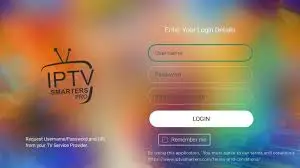
OTT PLAYER PROGRAM PAGE: